Installing IPTV on Android TV is usually straightforward, but the exact steps can vary depending on your IPTV service, the app you choose, and the type of login details you receive. If you are new to IPTV, the process may feel confusing at first because there are multiple apps, playlist formats, and device settings to think about. The good news is that once you understand the basic setup, getting started on Android TV becomes much easier.
This guide walks you through the process in simple terms. You will learn how to prepare your Android TV, choose a suitable IPTV app, add your subscription details, and fix common issues if something does not work right away. If you are using IPTV for Lifetime, you can also check the pricing page to compare plan options before you set up your device.
What You Need Before You Install IPTV on Android TV
Before installing anything, make sure you have the basics ready. This helps avoid setup problems later and saves time during the first login.
You will usually need:
- An Android TV or TV box running Android TV
- A stable internet connection
- Your IPTV login details, playlist link, or M3U URL
- An IPTV app from the Google Play Store or another trusted source
Some IPTV services use a username and password with a server URL, while others provide an M3U playlist or an Xtream-style login. The app you choose should support the format your provider gives you. If you are still comparing plan types, the Lifetime IPTV plan page can help you understand one of the available options on IPTV for Lifetime.
Choose the Right IPTV App for Android TV
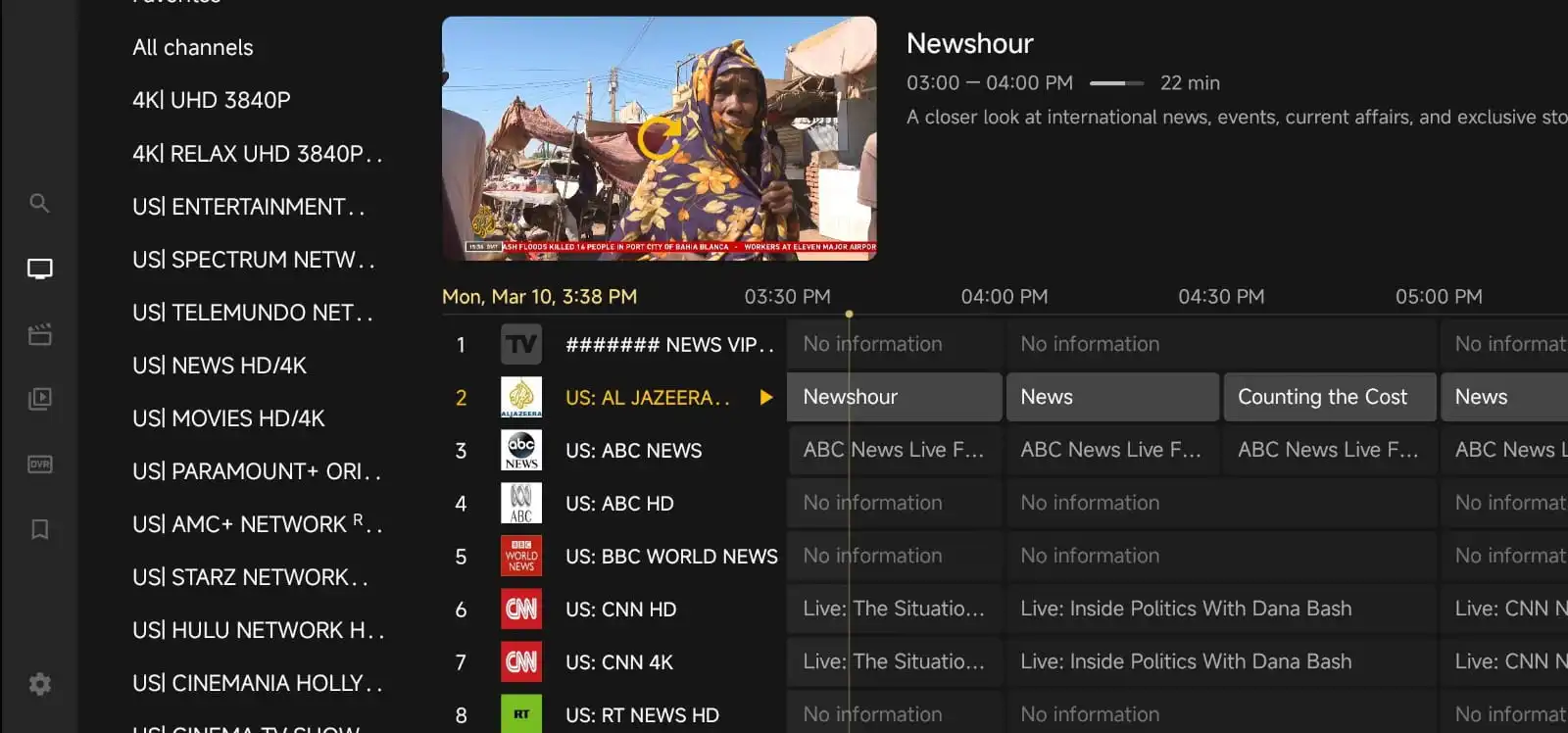
Android TV supports many IPTV apps, but not every app works the same way. Some are designed for M3U playlists, some for portal logins, and some offer a more TV-friendly interface with categories, favorites, and EPG support.
When choosing an app, look for these features:
- Support for your login type, such as M3U or Xtream codes
- A clean interface that works well with a remote control
- EPG support if your service provides a TV guide
- Fast channel loading and simple navigation
- Regular updates and decent user feedback
Popular IPTV app styles on Android TV often include players that let you import a playlist, log in with a username and password, or connect through a portal URL. The best choice depends on what your provider supports and what feels easiest for you to use. If you are browsing the site for more setup guidance, the blog is a useful place to find related articles and practical tips.
Install the IPTV App on Android TV
Once you have chosen an app, the installation process is usually simple.
Follow these general steps:
- Turn on your Android TV and connect it to the internet.
- Open the Google Play Store from the home screen.
- Search for your chosen IPTV app.
- Select the app and choose Install.
- Wait for the download and installation to finish.
- Open the app from your apps list or home screen.
If the app is not available in the Play Store, your IPTV provider may suggest an alternative installation method. In that case, make sure you only download apps from a trusted source and that your device settings allow app installation where appropriate. If you ever need help choosing the right account setup or have questions about getting started, you can always use the Contact Us page.
Add Your IPTV Playlist or Login Details
After installing the app, the next step is to add your IPTV subscription details. This is the part where most users either connect successfully right away or run into a small formatting issue.
The exact steps depend on the login type your service provides:
- M3U playlist: Paste the playlist URL into the app when prompted.
- Xtream-style login: Enter your username, password, and server URL.
- Portal login: Add the portal address and any required account details.
Be careful when typing or pasting the information. A small typo in the server address or playlist link can stop the app from loading channels. If your IPTV provider sent you a long URL, copy and paste it instead of typing it manually whenever possible.
After you enter the details, the app may take a few moments to load your channel list, categories, and EPG data. This is normal, especially the first time you log in.
Set Up the App for Easier Viewing
Once the app is connected, spend a few minutes adjusting the settings. A little setup now can make everyday use much better.
Useful settings to check include:
- Video player choice, if the app offers more than one
- Aspect ratio or screen fit
- Subtitle preferences
- Parental controls, if available
- Favorites or recent channels
- EPG refresh settings
If the app supports categories, you may want to organize your favorite channels or hide the ones you do not use often. This can make browsing faster, especially on a TV remote where typing is less convenient than on a phone or computer.
Common Problems When Installing IPTV on Android TV
Even when the setup is simple, a few common issues can appear. Most of them are easy to fix once you know what to check.
The app will not install
If the app does not install, first check whether your Android TV has enough storage space. You should also confirm that your internet connection is stable. If the app is from the Play Store, try restarting the TV and searching again. If it is a sideloaded app, make sure your device allows installs from the source you are using.
The playlist does not load
If your channels do not appear, verify that the playlist URL or login details are correct. Check for extra spaces, missing characters, or expired credentials. Some apps also need a manual refresh after the first login.
Channels buffer or freeze
Buffering can happen for many reasons, including weak internet, busy home networks, or a temporary issue with the stream source. Try closing other apps, restarting your router, and testing another channel. If the issue happens across many channels, the problem may be network-related rather than app-related.
EPG is missing or incomplete
If the channel list loads but the guide does not, the app may need more time to download EPG data. You can also try refreshing the guide manually. In some cases, the IPTV service may not provide full guide data for every channel.
Tips for a Smoother IPTV Experience on Android TV
After installation, a few small habits can improve your viewing experience.
- Keep your app updated when new versions are available
- Restart the TV occasionally if the app feels slow
- Use a wired connection if Wi-Fi is unstable
- Clear the app cache if menus become sluggish
- Save your favorite channels for quicker access
- Keep your login details in a safe place for future use
It is also a good idea to review the channels and features offered by a service before you buy. If you want to see what may be included, the channels list can give you a better idea of the content categories available.
Buying Advice Before You Set Up IPTV on Android TV
If you are still deciding on a subscription, think about how you plan to use IPTV on your Android TV. For example, a single living-room TV may need a different plan than a household with several devices. You should also consider whether you want a short-term option first or a longer-term plan that matches your viewing habits.
Before you purchase, check whether the service supports the app format you prefer, whether the setup instructions are clear, and whether support is available if you get stuck. A good provider should make the onboarding process understandable rather than leaving you to guess which app or login format to use.
If you want to learn more about the service structure and available account options, the Why Choose Us page is a helpful place to start.
Step-by-Step Summary
If you want a quick recap, here is the basic process for installing IPTV on Android TV:
- Make sure your Android TV is connected to the internet.
- Choose an IPTV app that supports your login type.
- Install the app from the Play Store or another trusted source.
- Enter your playlist link or account details carefully.
- Wait for the channels and guide to load.
- Adjust settings for better viewing and easier navigation.
That is the core of how to install IPTV on Android TV. Once the app is set up properly, using IPTV on a TV becomes much more convenient than trying to watch on a small screen.
FAQ
Can I install IPTV on any Android TV?
Most Android TVs and Android TV boxes can run IPTV apps, but compatibility depends on the device model, storage space, and Android version. If an app is too heavy for your device, try a lighter IPTV player.
Do I need a special app for IPTV on Android TV?
You need an app that supports your provider’s login format. Some apps work with M3U playlists, while others use username and password login or a portal URL.
Why is my IPTV app not loading channels?
Check your internet connection, confirm your login details, and make sure the playlist or account is active. If needed, restart the app and try again.
Can I use the same IPTV account on more than one device?
That depends on the plan you purchased. Some subscriptions support one device only, while others allow multiple connections. Review the plan details before using the account on several devices.
Where can I get help if I cannot finish the setup?
If you need help with your IPTV setup, use the Contact Us page for support or visit the blog for more practical guides.
Installing IPTV on Android TV does not need to be complicated. With the right app, correct login details, and a few quick checks, you can get your channels running and enjoy a more comfortable viewing setup on the big screen.