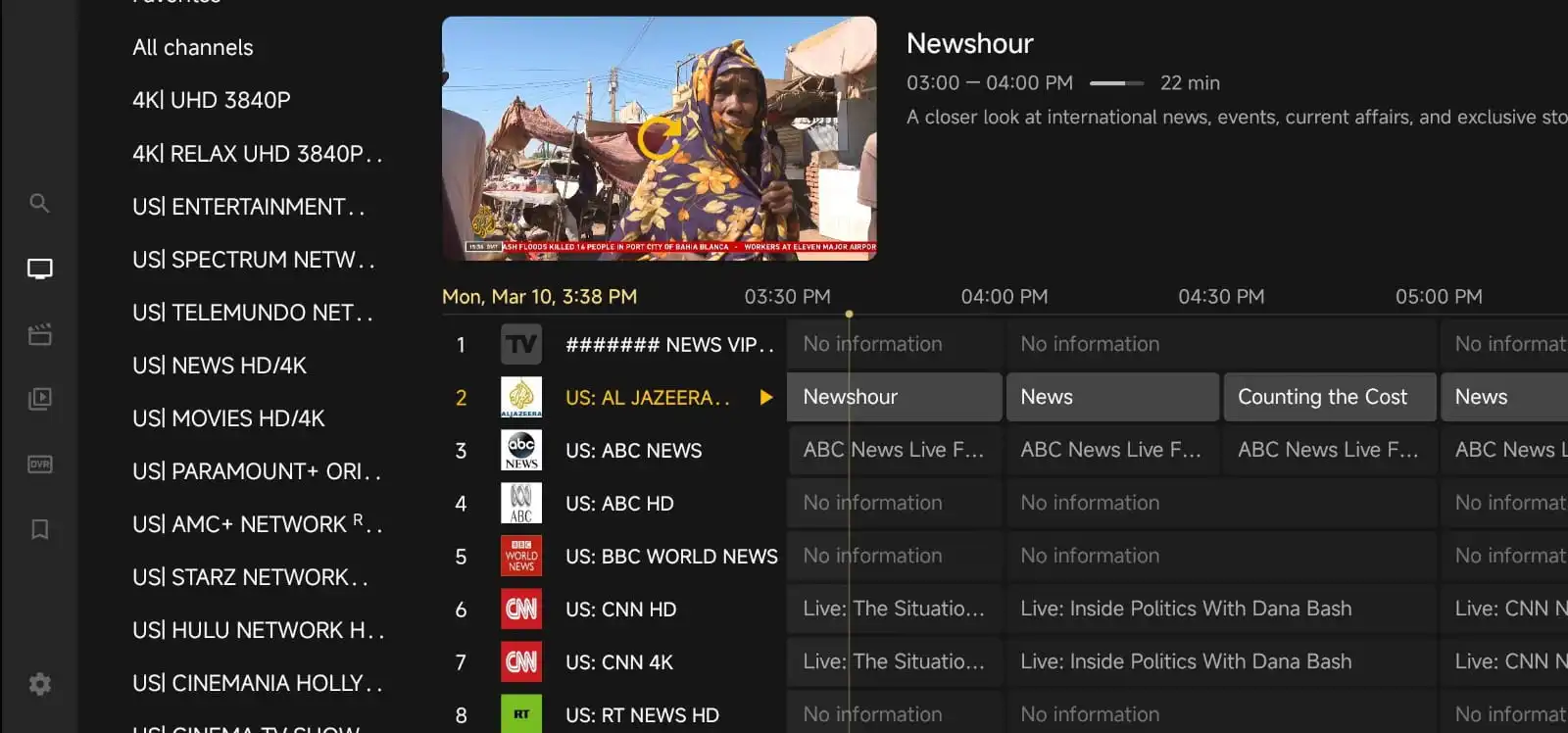
If you rely on the program guide to see what is on now and what is coming next, a broken EPG can be frustrating fast. The good news is that most IPTV EPG problems are caused by a few common issues such as incorrect time settings, a stale playlist, app cache problems, or a mismatch between the provider’s guide data and your device.
This guide explains how to fix EPG not working on IPTV in a simple, practical way. Whether the guide is blank, showing the wrong channels, or not updating at all, you can use the steps below to narrow down the cause and get things working again.
We will keep the advice device-friendly and focused on real troubleshooting, so you can spend less time guessing and more time watching. If you are using a service from IPTV for Lifetime, these same steps can help you check whether the issue is on your device, your app, or the source data itself.
What EPG is and why it matters
EPG stands for Electronic Program Guide. It is the schedule view that shows channel names, current programs, upcoming shows, start times, and sometimes program descriptions. A working EPG makes IPTV easier to use because you can browse content without switching channels one by one.
When the EPG stops working, the problem may look different depending on the app or device. You might see no listings at all, the wrong time slots, missing channel names, repeated old data, or a guide that loads for a moment and then disappears. Each symptom points to a slightly different cause.
Before changing a lot of settings, it helps to understand that EPG data usually comes from the provider or playlist source. Your app then downloads that data and displays it using your device’s time zone and cache. If any part of that chain breaks, the guide can look wrong.
Start with the easiest checks first
Before digging into app settings, begin with the basics. These quick checks solve many guide issues and take only a few minutes.
- Make sure your internet connection is stable.
- Restart the IPTV app completely, not just the stream.
- Reboot the device you are using.
- Check whether the issue happens on all channels or only some.
- Confirm that live channels themselves are loading normally.
If the streams work but the guide does not, the problem is usually related to EPG data, time settings, or app caching rather than the IPTV connection itself.
It is also worth checking whether the issue appears on another device. If the guide works on your phone but not on your TV box, the problem is probably local to that device or app installation.
Check your time zone and system clock
One of the most common reasons EPG looks wrong is a mismatch between the device clock and the guide data. If your time zone is incorrect, the guide may show programs in the wrong slot or appear out of sync by one or more hours.
Here is what to check:
- Set the correct time zone in your device settings.
- Turn on automatic date and time if your device supports it.
- Make sure daylight saving settings are correct if applicable.
- Restart the app after changing the time settings.
This matters on Smart TVs, Fire TV devices, Android boxes, and streaming sticks. Even if the stream plays normally, the EPG can still be offset if the clock is wrong. If you are seeing schedules that are consistently early or late, this is one of the first things to fix.
Refresh the playlist or reload the EPG data
Sometimes the guide is not broken permanently. It is simply stale. IPTV apps often cache EPG data to make browsing faster, but cached data can become outdated or corrupted.
Try these steps:
- Open your IPTV app settings.
- Look for an option such as refresh EPG, update guide, reload playlist, or clear EPG cache.
- Run the refresh and wait for it to complete.
- Close the app fully and reopen it.
If your app has a separate option for updating channels and updating EPG, run both. Some apps only refresh the guide when you manually request it. Others update on launch but may fail if the app was closed too quickly or if the device lost connection during the sync.
When a guide is blank after a new login or playlist import, waiting a few minutes and then forcing a refresh can help. Large playlists sometimes need time to download the full guide data.
Clear cache and app data when the guide gets stuck
If the EPG used to work and suddenly stopped, the app cache may be the problem. Cache files can help performance, but they can also hold damaged or outdated guide data.
Try clearing the cache first. On many devices, this removes temporary files without deleting your login details. If that does not help, you may need to clear app data and sign in again.
Use this order when possible:
- Clear cache
- Force stop the app
- Reopen and refresh EPG
- If needed, clear app data and re-add your playlist or login
Be careful with app data resets because they often remove saved preferences and account details. If you are not sure what will be erased, check the app’s help section or take a screenshot of your settings first.
Make sure your IPTV app supports the guide format
Not every IPTV app handles EPG the same way. Some apps work better with XMLTV links, some with M3U playlists, and some need the guide mapped manually to the channel list. If the app does not fully support your provider’s EPG format, the guide may load incorrectly or not at all.
When choosing or troubleshooting an app, look for support for:
- M3U playlists
- XMLTV EPG sources
- Channel mapping
- Auto-refresh of guide data
- Manual EPG update options
If the app is very basic, it may play channels fine but struggle with guide information. In that case, testing a different IPTV app on the same device can help you find out whether the issue is app-related or source-related.
If you are still comparing services or setup options, pages like Pricing and Why Choose Us can help you understand plan options and support expectations before you commit to a setup.
Check whether the problem is with one channel or the whole guide
It helps to isolate the issue. If only a few channels have missing or wrong EPG data, the playlist may have channel-name mismatches or incomplete guide entries. If the entire guide is broken, the cause is more likely to be a global app, device, or source issue.
Ask yourself these questions:
- Do some channels show the correct guide while others do not?
- Is the guide empty across all categories?
- Are the channel names correct but the schedule wrong?
- Does the guide load on one device but not another?
When only a few channels are affected, the issue may be as simple as a mismatch between the playlist name and the EPG channel identifier. Some apps let you manually remap channels, which can fix the problem without changing anything else.
Re-add the playlist or account details if needed
If refreshing and clearing cache do not help, remove the playlist or account from the app and add it again. This can fix broken links, incomplete syncs, or corrupted imports.
Before you delete anything, make sure you have the correct login details, playlist URL, or portal information saved. Then follow the app’s normal process to remove the current profile and create a clean one.
This step is especially useful if:
- You recently changed devices
- The provider updated the playlist format
- The guide worked before but stopped after an app update
- The app shows old or duplicate EPG entries
A fresh setup often fixes guide issues that simple refreshes cannot. It is one of the most reliable ways to rule out a broken import.
Test another device or another IPTV app
One of the fastest ways to find the source of the problem is to test the same IPTV account on a different device or app. If the EPG works there, your original device or app is likely the issue. If it fails everywhere, the problem is more likely related to the source data or account configuration.
Try this simple comparison:
- Test on a phone, tablet, or second TV device
- Try a different IPTV app with the same playlist
- Compare whether the channel list and guide load the same way
This kind of test saves time because it shows whether you should focus on device settings or on the IPTV source itself. It also helps when you contact support, because you can explain exactly what you tested.
When the EPG source itself is the issue
Sometimes the app is fine and the device is fine, but the EPG source is incomplete or temporarily unavailable. That can happen during maintenance, data updates, or if the provider has changed guide links.
Signs that the source may be the issue include:
- The guide is missing across multiple devices
- Only some categories have listings
- The guide loads briefly and then disappears after syncing
- The channel list is present, but program names are blank
In this case, the best next step is to check the provider’s support or account dashboard, if available. If you use IPTV for Lifetime and need help checking your setup, the Contact Us page is the best place to ask for assistance with account-specific troubleshooting.
Helpful device-specific tips
Different devices behave differently, so a fix that works on one platform may not work on another. Here are a few practical tips by device type.
Smart TVs
Smart TV apps can be sensitive to memory limits. If the guide is slow or failing to load, close other apps, restart the TV, and clear the IPTV app cache if possible. Also confirm that the TV’s time zone is correct.
Fire TV and streaming sticks
These devices often benefit from a full app restart and cache clear. If the EPG is not updating, force stop the app, reopen it, and refresh the guide. If the problem continues, reinstall the app and sign in again.
Android boxes and phones
Android devices usually offer more control over cache and app data. That makes them useful for testing. If EPG is broken on one Android box but works on another, compare app versions and device time settings.
Apple devices
On iPhone, iPad, or Apple TV apps, guide syncing may depend more heavily on the app’s own update cycle. If the EPG is delayed, check for app updates and restart the device after changing settings.
How to prevent EPG problems from coming back
Once you fix the guide, a few simple habits can reduce the chance of the problem returning.
- Keep your device time and time zone set to automatic when possible.
- Update your IPTV app regularly.
- Restart your device occasionally to clear temporary glitches.
- Refresh the EPG after adding a new playlist or changing devices.
- Avoid running too many background apps on low-memory devices.
It also helps to use a service and app combination that supports the guide format well. If you are still deciding on a plan, reviewing the Lifetime IPTV plan can be useful when you want a long-term option and prefer to understand the setup before you buy.
When to ask for support
If you have already checked time settings, refreshed the guide, cleared cache, and tested another device, it may be time to ask for help. The more details you can provide, the easier it is to diagnose the issue.
Useful details include:
- Your device model
- The IPTV app you are using
- Whether streams work but EPG does not
- Whether the issue affects all channels or only some
- What troubleshooting steps you already tried
If you are using IPTV for Lifetime, sharing this information through Contact Us can speed up the support process. Clear details help avoid repeating steps you have already completed.
FAQ
Why is my IPTV guide blank?
A blank guide is often caused by a bad time zone, a stale cache, a failed refresh, or a missing EPG source. Start by checking your device clock and then refresh the guide.
Why does my IPTV EPG show the wrong time?
This usually means your device time zone is incorrect or the app is not matching the guide data properly. Set the correct time zone and restart the app after changing it.
Why do some channels have EPG and others do not?
That can happen when the channel names do not match the guide entries or when the provider’s data is incomplete for certain channels. A manual remap or a fresh playlist import may help.
Should I clear cache or reinstall the app?
Start with clearing cache. If that does not work, reinstalling the app or re-adding the playlist is a good next step, especially if the guide has become stuck or corrupted.
What is the fastest fix for EPG not working on IPTV?
The fastest fix is usually to confirm the device time zone, refresh the EPG, and restart the app. If that fails, clear the cache and test on another device.
Fixing IPTV EPG issues is usually less complicated than it first appears. In many cases, the solution is as simple as correcting the time zone, refreshing the guide, or clearing a stuck cache. If the problem continues after those steps, testing another app or device can quickly show whether the issue is local or related to the source data.
For users who want a clearer view of plan options and setup support, you can also browse the Pricing page or check the Blog for more practical IPTV guides. With a careful step-by-step approach, you can usually get your guide back without much hassle.